Showing posts with label Galaxy Note. Show all posts
// // Leave a Comment

Update Galaxy Note 2 N7100 to XXUEMK9 Android 4.3 Jelly Bean Official Firmware

The wait is finally over! Galaxy Note 2 Update is now available. Samsung has just started rolling out Android 4.3 update for the Galaxy Note 2 N7100. It’s been a long time since Samsung updated the Galaxy Note 2 to a new version of Android. Samsung never updated the Galaxy Note 2 to Android 4.2.2 and even also never internally tested a single Android 4.2.2 build for the Note 2. The Galaxy Note 2 launched with Android 4.1.2 Jelly Bean, but now it can be upgrade to Android 4.3 Jelly Bean Official Firmware.

You can now Install this firmware on your phone with the most easy instructions. For those who are not able to download this update from Samsung KIES,  can grab this latest update for Galaxy Note 2 N7100 from the tutorial below . You do not need to have ClockworkMod recovery installed or a rooted phone in order to install this update manually. You can easily update Galaxy Note 2 Android 4.3 Jelly Bean Official Firmware from this tutorial.

Galaxy Note 2 N7100
Galaxy Note 2 with Official Android 4.3 Jelly Bean

Improvement and New Features in this ROM :

  • GALAXY GEAR Support
  • TRIM Support (Makes the device much faster)
  • Samsung KNOX
  • Samsung Wallet (Pre-loaded)
  • Better RAM management
  • Core UI elements updated to the ones on the Galaxy S4 (Galaxy S4′s theme all over)
  • New Samsung Keyboard
  • GPU drivers have been updated (Higher GPU benchmark scores)
  • New Lockscreen: Multiple Widgets, improved ripple effect than Android 4.1.2, ability to change clock size and set a personal message
  • New screen modes (From S4): Adapt Display and Professional Photo
  • Daydream
  • Driving mode
  • Actionable notifications
  • Move-to-SD-card feature
  • New Camera mode : Sound and Shot
  • New Additions in Notification Centre
  • Completely revamped Settings UI (Tabbed interface – Exactly like the Galaxy S4)
  • Implementation of Voice controls (Let’s you control various parts of the phone using voice commands – Galaxy S4 feature)
  • New Samsung Apps: Calculator, Clock, Contacts, Gallery, Music
  • Full screen Samsung apps
  • New S-Voice (from Galaxy S4)

Android 4.3 XXUEMK9 Firmware Details:

Model: GT-N7100
Model name: GALAXY Note II
Country: Spain (Yoigo) (Black Edition)
Version: Android 4.3
Changelist: 2138564
Build date: Wed, 20 Nov 2013 10:22:31 +0000
Product Code: YOG
PDA: N7100XXUEMK9
CSC: N7100YOGEMK1
MODEM: N7100XXUEMJ9

There are tons of useful articles and how-to guides on MyTrickSource for the Samsung Galaxy Note 2, but we think you might be interested in the following posts:

Samsung Galaxy Note 2 N7100 USB Drivers

You will need to connect your Android phone with the computer. For that, please make sure you have installed the USB drivers for Samsung Galaxy Note 2 properly. If not, you can download the latest official drivers from our Android USB Drivers section here:
Download Galaxy Note 2 N7100 USB drivers!

Backup and Other Important Tips

Done with the USB drivers? Perfect. Now please take a look at the following tips and important points you need to take care of. These are important, as we don’t want anyone losing their personal data or apps:
Always backup your important data that you might need after you install a new custom ROM, an official software update or anything else. Make a backup for just in case, you never know when anything might go wrong. See below for some tips on how to backup data:
Samsung users can also back up data using Samsung KIES. If you backup data manually, you get more options what to choose from and it is very easy to move data across Android devices from different manufacturers, i.e moving Samsung Galaxy Note backup data to HTC One X.
    If you already have a custom recovery (ClockworkMod, TWRP etc.) installed on your phone, we strongly recommend a backup using that as it creates a complete image of your existing phone set up.

A few more optional tips that you should remember:

      1. Having problems connecting your Android phone to the computer? You need to enable USB debugging mode.

        2. Make sure your Android device is charged up to 80-85% battery level. Why? Because, if your phone goes off suddenly while installing a custom ROM, flashing an official firmware update or installing mods etc. — your phone might get bricked or go dead permanently. No one wants that, right?


        3. Most of the tutorials and how-to guides on MyTrickSource are for factory unlocked Android phones and tablets. We recommend NOT to try our guides if your phone is locked to a carrier, unless we have specified the carrier name or device model.


If you find the above tips useful and they were helpful to you, please consider giving us a +1 or LIKE on facebook to thank us!


All set and ready? Sensible. Now, let’s proceed with the tutorial below and update Galaxy Note 2 N7100 to XXUEMK9 Android 4.3 Jelly Bean Official Firmware.

How to Update Galaxy Note 2 N7100 to XXUEMK9 Android 4.3 Jelly Bean Official Firmware

We have put together a detailed step-by-step instructions guide on how to Update Galaxy Note 2 N7100 to XXUEMK9 Android 4.3 Jelly Bean Official Firmware. If you are used to installing official updates through ODIN on Samsung Galaxy devices, then this should not be any different for you.
Please read every line carefully and make sure you read the tutorial once before actually performing it on your Android device.

To Remember:

  • This tutorial is only for Samsung Galaxy Ace Duos S6802. Please don’t   try this on any other variants of the phone.
  • This is an unbranded firmware with no carrier apps installed on it.
  • Make sure you backup all your data in your phone before proceeding.
Rooting Warning: This is an official Android 4.3 XXUEMK9 update for Galaxy Note 2 N7100, which means you will lose root as soon as you install this update . You will again have to root Galaxy Note 2 to gain full system access and be able to install root apps again. We will post a full tutorial on how to root Galaxy Note 2 N7100 on Android 4.3 soon.

Entire Step-By-Step procedure:

 Step 1 - Download XXUEMK9 Android 4.3 for Galaxy Note 2 N7100 to your computer and extract the zip file.

Step 2
 - Download ODIN v3.07 which will help you to install Android 4.3 on Galaxy Note 2.
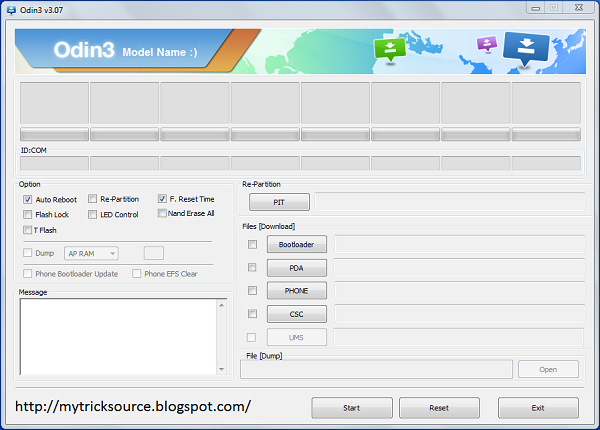


Step 3 - Switch OFF your phone. Now go to Download Mode. How? Press and hold the Volume Down + Power buttons together, till you see the Samsung logo or the construction Android robot and a triangle. This is the Download Mode.

Step 4 - Make sure you have your Galaxy Note 2 USB drivers installed on your computer.


Step 5 - Open ODIN on your computer. Connect Galaxy Note 2 to your computer while the phone is in the Download Mode.


Step 6
 - If your phone is connected successfully, one of the ID:COM boxes will turn yellow with the COM port number. This step might take some time.


Step 7
 - Now select the files that you have to flash/install on your phone. These files are to be found from the extracted files in Step 1.

  • Click on ‘PDA’ and select file with ‘CODE’ in its name.
  • Click on ‘Phone’ and select file with ‘MODEM’ in its name. Ignore this step if there is no such file.
  • Click on ‘CSC’ and select file with CSC’ in its name. Ignore this step if there is no such file.
  • Click on ‘PIT’ and select the .pit file. Ignore this step if there is no such file.
Step 8 - In ODIN, check the Auto Reboot and F. Reset Time options. As for the Re-Partition option, check it ONLY if you selected a .PIT file in the above step.

Step 9 - Now click on the Start button in ODIN. Installation process will start and would take a few minutes to complete.


Step 10 - After the installation is completed, your phone will restart. After you see the home screen, unplug your phone from the computer.


That’s it. Your Samsung Galaxy Note 2 N7100 has now been updated to XXUEMK9 Android 4.3 firmware. Go to Settings > About phone to verify.


Hit +1 or LIKE on Facebook to thank us!


If you run into any issues, be happy to drop us a comment below and that we can reply you back ASAP with the fix or the answer to your drawback.
Read More
// // 3 comments

Install Slim Bean Android 4.3 ROM on Galaxy Note N7000 Custom Firmware

Samsung Galaxy Note N7000 receive new build.1-OFFICIAL-874 Slim Bean Android 4.3 custom Rom update. This is the latest custom rom for Galaxy Note N7000 released earlier today. You can now easily update Galaxy Note N7000 to Slim Bean Android 4.3 which is a Official custom Rom based on Android 4.3,  Like always, we have the tutorial on how to install this firmware on your phone with the most easy instructions. This Custom Rom is Developed by SlimTeam. So all credit goes to them. 


As you continue reading below, we will guide you through the entire process of how to install Slim Bean Android 4.3 Custom Rom on Galaxy Note N7000 using CyanogenMod. So don’t forget to backup all your apps and personal data as a precaution. It is always better to make a backup before doing anything with your Android device. This is an official modified custom rom update by SlimTeam. The following tips are important as they will help the installation procedure to go smooth without any issues. Let’s continue with the tutorial now.

Disclaimer: All the custom ROMs and firmwares, official software updates, tools, mods or something mentioned within the tutorial belong to their several owners/developers. We have a tendency to Mytricksource or the developers don't seem to be command accountable if you injury or brick your device. We have a tendency to don’t have you ever on gun purpose to do out this tutorial.

There are heaps of useful articles and how-to guides on Mytricksource for Samsung Galaxy Note N7000, however we expect you may have an interest within the following posts:

Like this Slim Bean Custom ROM based on the latest Google Android 4.3? We love it too and we know you are looking forward to install it on your phone now. Now please read below for important tips on how to make sure your installation goes smooth and you do not end up with any problems.

Backup and Other Important Tips

Always backup your important data that you might need after you install a new custom ROM, an official software update or anything else. Make a backup for just in case, you never know when anything may go wrong. See below for some tips on how to backup data:
 Samsung users can also back up data using Samsung KIES. If you backup data manually, you get more options what to choose from and it is very easy to move data across Android devices from different manufacturers, i.e moving Samsung Galaxy S3 backup data to HTC One X.
    If you already have a custom recovery (ClockworkMod, TWRP etc.) installed on your phone, we strongly recommend a backup using that as it creates a complete image of your existing phone set up.

 A few more optional tips that you should remember:

        1. Having problems connecting your Android phone to the computer? You need to enable USB debugging mode.

        2. Make sure your Android device is charged up to 80-85% battery level. Why? Because, if your phone goes off suddenly while installing a custom ROM, flashing an official firmware update or installing mods etc. — your phone might get bricked or go dead permanently. No one wants that, right?

        3. Most of the tutorials and how-to guides on MyTrickSource are for factory unlocked Android phones and tablets. We recommend NOT to try our guides if your phone is locked to a carrier, unless we have specified the carrier name or device model.

If you find the above tips useful and they were helpful to you, please consider giving us a +1 or LIKE on facebook to thank us!

All set and ready? Sensible. Now, let’s proceed with the tutorial below and update Galaxy Note N7000 to Slim Bean Android 4.3 Custom ROM.

How to Install Slim Bean Android 4.3 Custom Rom in Galaxy Note N7000


We have put together a detailed step-by-step instructions guide on how to install Slim Bean Android 4.3 Custom firmware on Galaxy Note N7000. If you are used to installing custom ROMs on your Galaxy Note N7000, then this should not be any difficult for you.


However, for beginners, you need to root your Samsung Galaxy Note N7000 and install a custom recovery. Please Google that up if you are unsure and make sure you read the tutorial once before actually performing it on your device.


To Remember:
  • This tutorial is only for installing Slim Bean Android 4.3 ROM on Samsung Galaxy Note N7000. Please do not try on any other Galaxy variants.
  • Your phone should be rooted and have ClockworkMod recovery installed from before.
  • This tutorial will wipe out all your data. Proceed at your own risk.
  • Perform a Dalvik Cache wipe before proceeding from the recovery mode.
  • Samsung KIES will NOT detect your phone after installing this ROM because it is a custom firmware.
  • Make sure you backup all your data in your phone before proceeding.

Entire Step-By-Step directions:

Step 1 - Download Slim-n7000-4.3.build.1-OFFICIAL-874 Custom Rom and Google Apps for Galaxy Note N7000 on your computer.

Step 2 Connect and mount your Galaxy Note N7000 USB memory on your computer using the USB cable.

Step 3 - Now copy/paste the downloaded Slim Bean Android 4.3 zip file to your SD card. Make sure the file is in the SD card root (not in any folder).


Step 4 - Then turn OFF your phone and disconnect from the USB cable.


Step 5 - Now to get in the Recovery Mode. Switch ON the phone while pressing and holding Volume Up + Home + Power buttons together. You will get an exclamation mark now. Again, hold your Volume Up + Power buttons. You should now be in your Recovery Mode.


Step 6 - Once you are in ClockworkMod Recovery, select perform a full data wipe by selecting “wipe data/factory reset”  Use the Power button to select everything while in the Recovery Mode.


Step 7 - Then, perform a cache wipe by selecting “wipe cache partition” carefully.


Step 8 - Now this is optional, but it is recommended to perform a wipe of your dalvik cache as well. You will not get into boot loops or any other errors. From CWM recovery, go to ‘advanced’ and then select “wipe dalvik cache”.


Step 9 - Then go back to the main recovery screen and select “install zip from SD card”.


Step 10 - Now select “choose zip from sdcard”. Using your volume keys, navigate to the Slim-n7000-4.3 build.1-OFFICIAL-874 zip file that you copied to your SD card and select it using the Power button. Confirm the installation on the next screen and the installation procedure should start now.


Note: Repeat the same process with Google Apps as well as you did in step 10.


Step 11 - After the installation completes, go to “+++++Go Back+++++” and reboot the phone by selecting “reboot system now

Your Galaxy Note N7000 will boot now and it might take about 5 minutes to boot on your first time. So, please wait.

That’s it! Your Galaxy Note N7000 should now have Slim Bean Android 4.3 Custom Rom installed on your phone! Go to Settings > About phone to verify.

Need Help?

If you run into any problems during Updating Samsung Galaxy Note N7000 to Slim Bean build.1-OFFICIAL-874 Custom Firmware, feel free to drop us a comment below and we will reply you back ASAP with the fix or the answer to your drawback.
Read More
// // 11 comments

Install Slim Bean Android 4.2.2 ROM on Galaxy Note N7000 Custom Firmware

Samsung Galaxy Note N7000 receive new build.7 Slim Bean Android 4.2.2 custom Rom update. You can now easily update Galaxy Note N7000 to Slim Bean Android 4.2.2 which is a  build 7 Official custom Rom based on Android 4.2.2,  Like always, we have the tutorial on how to install this firmware on your phone with the most easy instructions. This Custom Rom is Developed by SlimTeam. So all credit goes to them. 


Samsung Galaxy Note N7000

As you continue reading below, we will guide you through the entire process of how to install build.7 Slim Bean Custom Rom on Galaxy Note N7000 using CyanogenMod. Don’t forget to backup all your apps and personal data as a precaution. It is always better to make a backup before doing anything with your Android device. This is an official Custom firmware update by SlimTeam,  a modified custom ROM. The following tips are important as they will help the installation procedure to go smooth without any issues. Let’s continue with the tutorial now.

Disclaimer: All the custom ROMs and firmwares, official software updates, tools, mods or something mentioned within the tutorial belong to their several owners/developers. We have a tendency to Mytricksource or the developers don't seem to be command accountable if you injury or brick your device. We have a tendency to don’t have you ever on gun purpose to do out this tutorial.

There are heaps of useful articles and how-to guides on Mytricksource for Samsung Galaxy Note N7000, however we expect you may have an interest within the following posts:
Like this Slim Bean Custom ROM based on the latest Google Android 4.2.2? We love it too and we know you are looking forward to install it on your phone now. Now please read below for important tips on how to make sure your installation goes smooth and you do not end up with any problems.

Backup and Other Important Tips

Always backup your important data that you might need after you install a new custom ROM, an official software update or anything else. Make a backup for just in case, you never know when anything might go wrong. See below for some tips on how to backup data:
       Samsung users can also back up data using Samsung KIES. If you backup data manually, you get more options what to choose from and it is very easy to move data across Android devices from different manufacturers, i.e moving Samsung Galaxy S3 backup data to HTC One X.
          If you already have a custom recovery (ClockworkMod, TWRP etc.) installed on your phone, we strongly recommend a backup using that as it creates a complete image of your existing phone set up.

       A few more optional tips that you should remember:

              1. Having problems connecting your Android phone to the computer? You need to enable USB debugging mode.

              2. Make sure your Android device is charged up to 80-85% battery level. Why? Because, if your phone goes off suddenly while installing a custom ROM, flashing an official firmware update or installing mods etc. — your phone might get bricked or go dead permanently. No one wants that, right?

              3. Most of the tutorials and how-to guides on MyTrickSource are for factory unlocked Android phones and tablets. We recommend NOT to try our guides if your phone is locked to a carrier, unless we have specified the carrier name or device model.

      If you find the above tips useful and they were helpful to you, please consider giving us a +1 or LIKE on facebook to thank us!

      All set and ready? Sensible. Now, let’s proceed with the tutorial below and update Galaxy Note N7000 to Slim Bean Android 4.2.2 Custom ROM.

      How to Install Slim Bean Android 4.2.2 Custom Rom in Galaxy Note N7000


      We have put together a detailed step-by-step instructions guide on how to install Slim Bean Android 4.2.2 Custom firmware on Galaxy Note N7000. If you are used to installing custom ROMs on your Galaxy Note N7000, then this should not be any different for you.

      However, for beginners, you need to root your Samsung Galaxy Note N7000 and install a custom recovery. Please Google that up if you are unsure and make sure you read the tutorial once before actually performing it on your device.

      To Remember:
      • This tutorial is only for installing Slim Bean Android 4.2.2 ROM on Samsung Galaxy Note N7000. Please do not try on any other Galaxy variants.
      • Your phone should be rooted and have ClockworkMod recovery installed from before.
      • This tutorial will wipe out all your data. Proceed at your own risk.
      • Perform a Dalvik Cache wipe before proceeding from the recovery mode.
      • Samsung KIES will NOT detect your phone after installing this ROM because it is a custom firmware.
      • Make sure you backup all your data in your phone before proceeding. Fair Look Cream

      Entire Step-By-Step directions:

      Step 1 - Download Slim-n7000-4.2.2.build.7-OFFICIAL  Custom Rom and Google Apps for Galaxy Note N7000 o your computer.

      Step 2 Connect and mount your Galaxy Note N7000 USB memory on your computer using the USB cable.

      Step 3 - Now copy/paste the downloaded Slim Bean Android 4.2.2 zip file to your SD card. Make sure the file is in the SD card root (not in any folder).

      Step 4 - Then turn OFF your phone and disconnect from the USB cable.

      Step 5 - Now to get in the Recovery Mode. Switch ON the phone while pressing and holding Volume Up + Home + Power buttons together. You will get an exclamation mark now. Again, hold your Volume Up + Power buttons. You should now be in your Recovery Mode.

      Step 6 - Once you are in ClockworkMod Recovery, select perform a full data wipe by selecting “wipe data/factory reset”  Use the Power button to select everything while in the Recovery Mode.

      Step 7 - Then, perform a cache wipe by selecting “wipe cache partition” as you can see in the image below.

      Step 8 - Now this is optional, but it is recommended to perform a wipe of your dalvik cache as well. You will not get into boot loops or any other errors. From CWM recovery, go to ‘advanced’ and then select “wipe dalvik cache”.

      Step 9 - Then go back to the main recovery screen and select “install zip from SD card”.

      Step 10 - Now select “choose zip from sdcard”. Using your volume keys, navigate to the Slim-n7000-4.2.2.build.7-OFFICIAL zip file that you copied to your SD card and select it using the Power button. Confirm the installation on the next screen and the installation procedure should start now.

      Note: Repeat the same process with Google Apps as well as you did in step 10.

      Step 11 - After the installation completes, go to “+++++Go Back+++++” and reboot the phone by selecting “reboot system now

      Your Galaxy Note N7000 will boot now and it might take about 5 minutes to boot on your first time. So, please wait.

      That’s it! Your Galaxy Note N7000 should now have Slim Bean Android 4.2.2 Custom Rom installed on your phone! Go to Settings > About phone to verify.

      Need Help?

      If you run into any problems during Updating Samsung Galaxy Note N7000 to Slim Bean build.7 Custom Firmware, feel free to drop us a comment below and we will reply you back ASAP with the fix or the answer to your drawback.
      Read More
      // // 2 comments

      Update Galaxy Note N7000 to XXLT5 Android 4.1.2 Jelly Bean Official Firmware

      You can now update Samsung Galaxy Note N7000 to XXLT5 Android 4.1.2 official firmware update. This is the latest firmware released earlier today for this Android phone. Like always, we have the tutorial on how to install this firmware on your phone with the most easy instructions. For those who are not able to download this update from Samsung KIES, you can always grab the latest update for Galaxy Note N7000 and the tutorial from MyTrickSource. You do not need to have ClockworkMod recovery installed or a rooted phone in order to install this update manually. You can easily update Galaxy Note N7000 to XXLT5 Android 4.1.2 using our tutorial.

      Samsung Galaxy Note N7000

      As you continue reading, we will guide you through the entire process of how to install XXLT5 Android 4.1.2 firmware on Galaxy Note N7000. Please make sure you backup your data with the given tips below and also read the other important tips given as you will need them before proceeding to the update tutorial. This is an unbranded firmware so it can be installed on any Galaxy Note N7000. Let’s continue with the tutorial below.

      Disclaimer: All the custom ROMs and firmwares, official software updates, tools, mods or something mentioned within the tutorial belong to their several owners/developers. We have a tendency to Mytricksource or the developers don't seem to be command accountable if you injury or brick your device. We have a tendency to don’t have you ever on gun purpose to do out this tutorial.

      Android 4.1.2 XXLT5 Firmware Details:

      Android 4.1.2 Jelly Bean
      Model: GT-N7000
      Model name: GALAXY Note
      Country: Portugal (TPH)
      Version: Android 4.1.2
      Changelist: 1103517
      Build date: Fri, 19 Apr 2013 17:02:58 +0000
      Product Code: TPH
      PDA: N7000XXLT5
      CSC: N7000OXXLT2
      MODEM: N7000XXLT3

        There are heaps of useful articles and how-to guides on Mytricksource for Samsung Galaxy Note N7000, however we expect you may have an interest within the following posts:

        Samsung Galaxy Note N7000 USB Drivers

        You will need to connect your Android phone with the computer. For that, please make sure you have installed the USB drivers for Samsung Galaxy Note N7000 properly. If not, you can download the latest official drivers from our Android USB Drivers section here:
        Download Samsung Galaxy Note N7000 USB drivers!

        Backup and Other Important Tips

        Done with the USB drivers? Perfect. The tutorial is on the next page, but first, please take a look at the following tips and important points you need to take care of. These are important, as we don’t want anyone losing their personal data or apps:
        Always backup your important data that you might need after you install a new custom ROM, an official software update or anything else. Make a backup for just in case, you never know when anything might go wrong. See below for some tips on how to backup data:
        Samsung users can also back up data using Samsung KIES. If you backup data manually, you get more options what to choose from and it is very easy to move data across Android devices from different manufacturers, i.e moving Samsung Galaxy Note backup data to HTC One X.
            If you already have a custom recovery (ClockworkMod, TWRP etc.) installed on your phone, we strongly recommend a backup using that as it creates a complete image of your existing phone set up.

        A few more optional tips that you should remember:

              1. Having problems connecting y
        our Android phone to the computer? You need to enable USB debugging mode.

                2. Make sure your Android device is charged up to 80-85% battery level. Why? Because, if your phone goes off suddenly while installing a custom ROM, flashing an official firmware update or installing mods etc. — your phone might get bricked or go dead permanently. No one wants that, right?


                3. Most of the tutorials and how-to guides on MyTrickSource are for factory unlocked Android phones and tablets. We recommend NOT to try our guides if your phone is locked to a carrier, unless we have specified the carrier name or device model.


        If you discover the on top of tips helpful and that they were useful to you, please think about giving us a +1 or LIKE on facebook to impart us!


        All set and ready? Sensible. Now, let’s proceed with the tutorial below and update Galaxy Note N7000 to XXLT5 Android 4.1.2 Jelly Bean Official Firmware.

        How to Update Galaxy Note N7000 to XXLT5 Android 4.1.2 Jelly Bean Official Firmware

        We have place along in depth piecemeal directions orient a way to Update Galaxy Note N7000 to XXLT5 Android 4.1.2 Jelly Bean Official Firmware. If you are utilised to installing authorized updates through ODIN on Samsung Galaxy apparatus, then this should not be any distinct for you.
        Please read every line mindfully and make certain you read the tutorial one time before actually accomplishing it on your Android apparatus. 
        To Remember:
        • This tutorial is only for Samsung Galaxy Note N7000. Please don’t   try this on any other variants of the phone.
        • This is an unbranded firmware with no carrier apps installed on it.
        • Make sure you backup all your data in your phone before proceeding.
        Rooting Warning: This is an official Android 4.1.2 XXLT5 update for Galaxy Note N7000,  which means you will lose root as soon as you install this update . You will again have to root Galaxy Note N7000 to gain full system access and be able to install root apps again. We will post a full tutorial on how to root Galaxy Note N7000 on Android 4.1.2 soon.

        Entire Step-By-Step directions:

         Step 1 - Download XXLT5 Android 4.1.2 for Galaxy Note N7000 to your computer and extract the zip file.

        Step 2
         - Download ODIN v3.07 which will help you to install Android 4.1.2 on Samsung Galaxy Note N7000.


        Step 3 - Switch OFF your phone. Now go to Download Mode. How? Press and hold the Volume Down + Power buttons together, till you see the Samsung logo or the construction Android robot and a triangle. This is the Download Mode.

        Step 4 - Make sure you have your Galaxy Note N7000 USB drivers installed on your computer.


        Step 5 - Open ODIN on your computer. Connect Galaxy Note N7000 to your computer while the phone is in the Download Mode.


        Step 6
         - If your phone is connected successfully, one of the ID:COM boxes will turn yellow with the COM port number. This step might take some time.


        Step 7
         - Now select the files that you have to flash/install on your phone. These files are to be found from the extracted files in Step 1.

        • Click on ‘PDA’ and select file with ‘CODE’ in its name.
        • Click on ‘Phone’ and select file with ‘MODEM’ in its name. Ignore this step if there is no such file.
        • Click on ‘CSC’ and select file with CSC’ in its name. Ignore this step if there is no such file.
        • Click on ‘PIT’ and select the .pit file. Ignore this step if there is no such file.
        Step 8 - In ODIN, check the Auto Reboot and F. Reset Time options. As for the Re-Partition option, check it ONLY if you selected a .PIT file in the above step.

        Step 9 - Now click on the Start button in ODIN. Installation process will start and would take a few minutes to complete.


        Step 10 - After the installation is completed, your phone will restart. After you see the home screen, unplug your phone from the computer.


        That’s it. Your Samsung Galaxy Note N7000 has now been updated to XXLT5 Android 4.1.2 firmware. Go to Settings > About phone to verify.


        Hit +1 or LIKE on Facebook to thank us!


        If you run into any issues, be happy to drop us a comment below and that we can reply you back ASAP with the fix or the answer to your drawback.
        Read More
        // // 10 comments

        Install Slim Bean Android 4.2.2 ROM on Galaxy Note 2 N7100 Custom Firmware


        Samsung Galaxy Note II N7100 receive new build.5 Slim Bean Android 4.2.2 custom Rom update. You can now easily update Galaxy Note II N7100 to Slim Bean Android 4.2.2 which is a  build 5 Official custom Rom based on Android 4.2.2,  Like always, we have the tutorial on how to install this firmware on your phone with the most easy instructions. This Custom Rom is Developed by SlimTeam. So all credit goes to them. 


        As you continue reading below, we will guide you through the entire process of how to install build.5 Slim Bean Custom Rom on Galaxy Note II N7100 using CyanogenMod. Don’t forget to backup all your apps and personal data as a precaution. It is always better to make a backup before doing anything with your Android device. This is an official Custom firmware update by SlimTeam,  a modified custom ROM. The following tips are important as they will help the installation procedure to go smooth without any issues. Let’s continue with the tutorial now.

        There are tons of  article on MyTrickSource for Galaxy Note 2, but you might have interest on the following articles:

        Disclaimer:  All the custom ROMs and firmwares, official software updates, tools, mods or anything mentioned in the tutorial belong to their respective owners/developers. We (MyTrickSource) or the developers are not to be held responsible if you damage or brick your device. We don’t have you on gun point to try out this tutorial

        Like this Slim Bean Custom ROM based on the latest Android 4.2.2? We love it too and we know you are looking forward to install it on your phone now. Now please read below for important tips on how to make sure your installation goes smooth and you do not end up with any problems.

        Backup and Other Important Tips

        Always backup your important data that you might need after you install a new custom ROM, an official software update or anything else. Make a backup for just in case, you never know when anything might go wrong. See below for some tips on how to backup data:
             Samsung users can also back up data using Samsung KIES. If you backup data manually, you get more options what to choose from and it is very easy to move data across Android devices from different manufacturers, i.e moving Samsung Galaxy S3 backup data to HTC One X.
                If you already have a custom recovery (ClockworkMod, TWRP etc.) installed on your phone, we strongly recommend a backup using that as it creates a complete image of your existing phone set up.

             A few more optional tips that you should remember:

                    1. Having problems connecting your Android phone to the computer? You need to enable USB debugging mode.

                    2. Make sure your Android device is charged up to 80-85% battery level. Why? Because, if your phone goes off suddenly while installing a custom ROM, flashing an official firmware update or installing mods etc. — your phone might get bricked or go dead permanently. No one wants that, right?

                    3. Most of the tutorials and how-to guides on MyTrickSource are for factory unlocked Android phones and tablets. We recommend NOT to try our guides if your phone is locked to a carrier, unless we have specified the carrier name or device model.

            If you find the above tips useful and they were helpful to you, please consider giving us a +1 or LIKE on facebook to thank us!

            All set and ready? Good. Now, let’s proceed with the tutorial Below and Install build.5 Slim Bean Android 4.2.2 ROM on Galaxy Note II N7100

            How to Install Slim Bean Android 4.2.2 Custom Rom in Galaxy Note II N7100


            We have put together a detailed step-by-step instructions guide on how to install Slim Bean Android 4.2.2 Custom firmware on Galaxy Note II N7100. If you are used to installing custom ROMs on your Galaxy Note II N7100, then this should not be any different for you.

            However, for beginners, you need to root your Samsung Galaxy Note II N7100 and install a custom recovery. Please Google that up if you are unsure and make sure you read the tutorial once before actually performing it on your device.

            To Remember:
            • This tutorial is only for installing Slim Bean Android 4.2.2 ROM on Samsung Galaxy Note II N7100. Please do not try on any other Galaxy variants.
            • Your phone should be rooted and have ClockworkMod recovery installed from before.
            • This tutorial will wipe out all your data. Proceed at your own risk.
            • Perform a Dalvik Cache wipe before proceeding from the recovery mode.
            • Samsung KIES will NOT detect your phone after installing this ROM because it is a custom firmware.
            • Make sure you backup all your data in your phone before proceeding.

            Complete Step-By-Step Instructions:

            Step 1 - Download Slim-n7100-4.2.2.build.5-OFFICIAL  Custom Rom for Galaxy Note II N7100 to your computer.
            Step 2 - Connect and mount your Galaxy Note II N7100 USB memory on your computer using the USB cable.

            Step 3 - Now copy/paste the downloaded Slim Bean Android 4.2.2 zip file to your SD card. Make sure the file is in the SD card root (not in any folder).


            Step 4 - Then turn OFF your phone and disconnect from the USB cable.


            Step 5 - Now to get in the Recovery Mode. Switch ON the phone while pressing and holding Volume Up + Home + Power buttons together. You will get an exclamation mark now. Again, hold your Volume Up + Power buttons. You should now be in your Recovery Mode.


            Step 6 - Once you are in ClockworkMod Recovery, select perform a full data wipe by selecting “wipe data/factory reset”  Use the Power button to select everything while in the Recovery Mode.


            Step 7 - Then, perform a cache wipe by selecting “wipe cache partition” as you can see in the image below.


            Step 8 - Now this is optional, but it is recommended to perform a wipe of your dalvik cache as well. You will not get into boot loops or any other errors. From CWM recovery, go to ‘advanced’ and then select “wipe dalvik cache”.


            Step 9 - Then go back to the main recovery screen and select “install zip from SD card”.


            Step 10 - Now select “choose zip from sdcard”. Using your volume keys, navigate to the Slim Bean Android 4.2.2 zip file that you copied to your SD card and select it using the Power button. Confirm the installation on the next screen and the installation procedure should start now.


            Step 11 - After the installation completes, go to “+++++Go Back+++++” and reboot the phone by selecting “reboot system now

            Your Galaxy Note II N7100 will boot now and it might take about 5 minutes to boot on your first time. So, please wait.

            That’s it! Your Galaxy Note II N7100 should now have Slim Bean Android 4.2.2 Custom Rom installed on your phone! Go to Settings > About phone to verify.

             Need Help?

            If you run into any problems during Updating Samsung Galaxy Note II N7100 to Slim Bean build.5 Custom Firmware, feel free to drop us a comment below and we will reply you back ASAP with the fix or the solution to your problem.
            Read More
            // // Leave a Comment

            Update Galaxy Note 8.0 N5120 to XXBME1 Android 4.1.2 Jelly Bean Official Firmware

            You can now update Galaxy Note 8.0 to XXBME1 Android 4.1.2 official firmware update.  Like always, we have the tutorial on how to install this firmware on your phone with the most easy instructions. For those who are not able to download this update from Samsung KIES, you can always grab the latest update for Galaxy Note 8.0 and the tutorial from MyTrickSource. You do not need to have ClockworkMod recovery installed or a rooted phone in order to install this update manually. You can easily update Galaxy Note 8.0 to XXBME1 Android 4.1.2 using our tutorial.
            Read More
            // // 1 comment

            Update Galaxy Note 8.0 N5100 to XXBMD1 Android 4.1.2 Jelly Bean Official Firmwares


            You can now update Galaxy Note 8.0 to XXBMD1 Android 4.1.2 official firmware update. This is the latest firmware released earlier today for this Android phone. Like always, we have the tutorial on how to install this firmware on your phone with the most easy instructions. For those who are not able to download this update from Samsung KIES, you can always grab the latest update for Galaxy Note 8.0 and the tutorial from MyTrickSource. You do not need to have ClockworkMod recovery installed or a rooted phone in order to install this update manually. You can easily update Galaxy Note 8.0 to XXBMD1 Android 4.1.2 using our tutorial.

            As you continue reading, we will guide you through the entire process of how to install XXBMD1 Android 4.1.2 firmware on Galaxy Note 8.0. Please make sure you backup your data with the given tips below and also read the other
            Read More
            // // 1 comment

            Samsung Galaxy Note 8.0 arrives in Canada

            So what does the Samsung Note 8.0 bring to the table? The tablet features a 1280×800 8-inch display, an Exynos 4412 quad-core processor, 16GB storage, 2GB RAM, a stylus and a camera on both the front and the back of the tablet. As for the OS, you get the power of Android 4.1 with TouchWiz and stylus-optimized apps.
            Read More
            // // Leave a Comment

            Update T-Mobile Galaxy Note SGH-T879 to CM10.1 M3 Android 4.2.2 Jelly Bean Custom Firmware


            CM10.1 M3 Android 4.2.2 ROM for T-Mobile Samsung Galaxy Note SGH-T879 is now available for download and can be installed using ClockworkMod Recovery. Milestone 3 of CM10.1 brings a lot of more features than their previous release and is very stable and a fast ROM. Android 4.2.2 CM10.1 custom ROM is still in development with new releases

            Read More